 Macadam
 In this article
Fusion import/export is the centerpiece of this update. Macadam's Fusion exporter add-in and importer bring across geometry, supported editable history, parameters, assemblies and appearances, so you can continue working on existing designs in Macadam.
The release also introduces GraphHopper visual programming, configurable workspaces, AI connections and an organized encrypted Cloud Library.
From Fusion to an editable Macadam design
Install the Macadam exporter add-in from File → Fusion360 importer…, export your design from Fusion, then open the complete export folder or ZIP in Macadam. Bringing the complete bundle includes the linked components and assets your design depends on. The installation guidance covers Mac and Windows.
What works today
- Editable history: supported sketches, parameters and expressions become native Macadam features. The importer reconstructs supported extrudes, revolves, sweeps, guided lofts, patterns, mirrors, moves, holes, chamfers, shells, combines and splits. Support varies by operation and variant.
- Parts and assemblies: component structure, placements and visibility come across, including repeated component instances.
- Linked components: the exporter can include their editable histories and dependencies. Choose a single document with embedded dependencies or external parts with pinned source versions. Historyless components use geometry import.
- Designs without a timeline: direct-modeling designs, historyless bodies and mesh bodies can also be brought into Macadam.
- Appearances: supported materials, body colors and image assets travel with the design.
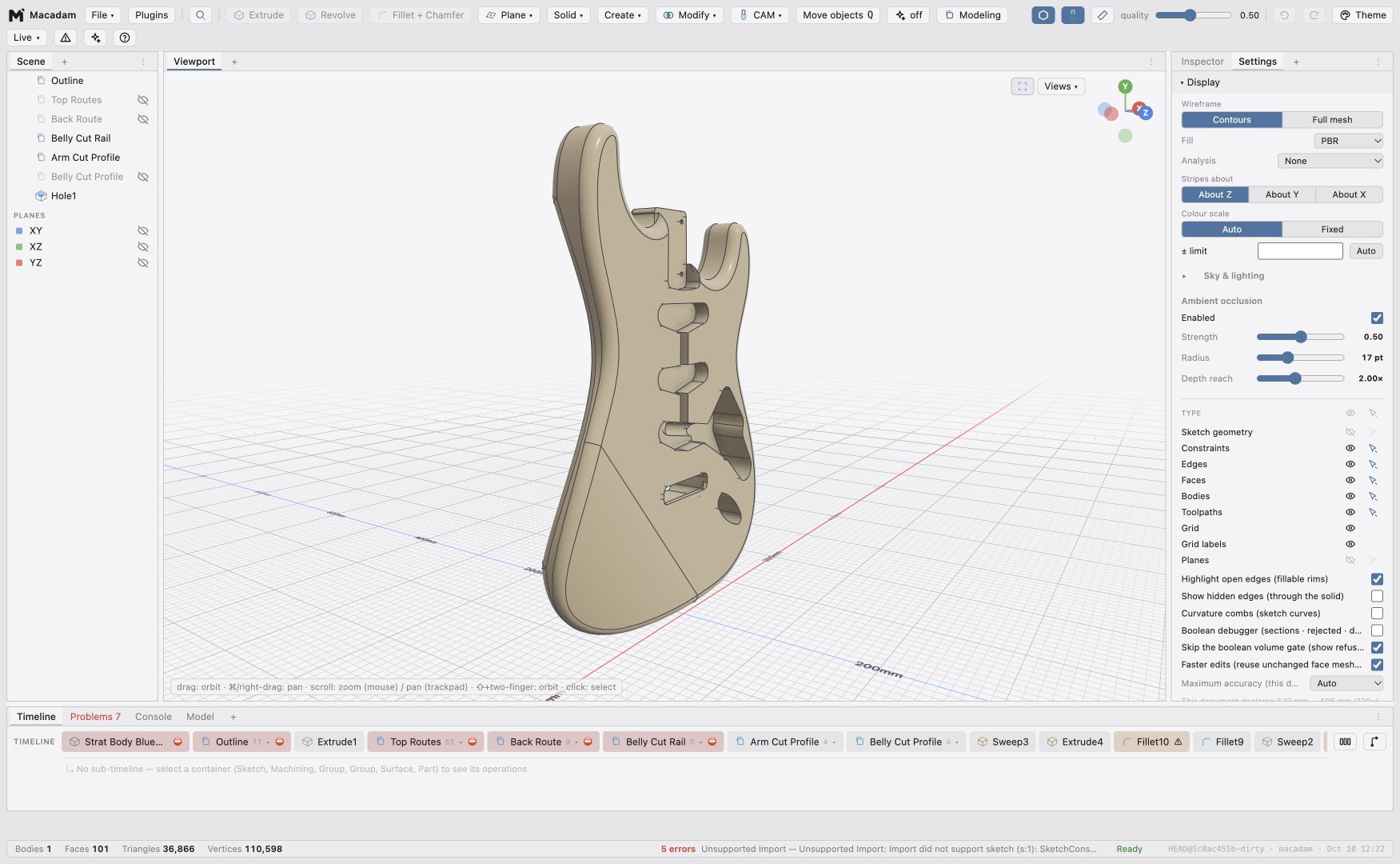
- Useful diagnostics: unsupported operations retain their source information and appear in the Problems panel. Supported portions remain available to inspect and edit; opening a file does not mean every operation has been reproduced.
What is still in progress
Fusion compatibility is an ongoing effort. Some sketch constraints and canvases, complex fillets, cuts, lofts and surface operations still have incomplete mappings or geometry differences. Known guitar-body examples still need work on particular contours, cavities and downstream operations.
Sheet-metal import is also partial: supported base profiles and some contour-flange chains are editable, while broader edge-flange attachment, reliefs, lofted flanges, unfold/refold history and complex cuts across bends remain in progress. Check the Problems panel when assessing an imported design.
External parts currently refer to pinned exports; they do not automatically follow revisions in Fusion. This is a Fusion-to-Macadam transfer, not a bidirectional history round trip or live synchronization. Re-export with the latest add-in to benefit from newly captured information and importer improvements.
Build parametric designs with GraphHopper
GraphHopper connects operations through a visual graph: combine numbers, points, curves, surfaces and supported CAD commands, then expose useful parameters and outputs. Change an input and the connected design updates.
Start from architectural examples including a waffle canopy, a twisted tower and an attractor-driven facade. Use repeatable seeded random values, Perlin-style and value noise, or numeric CSV and JSON data to drive your geometry. Numeric inputs can be integers or decimals, with optional limits and scrub controls.
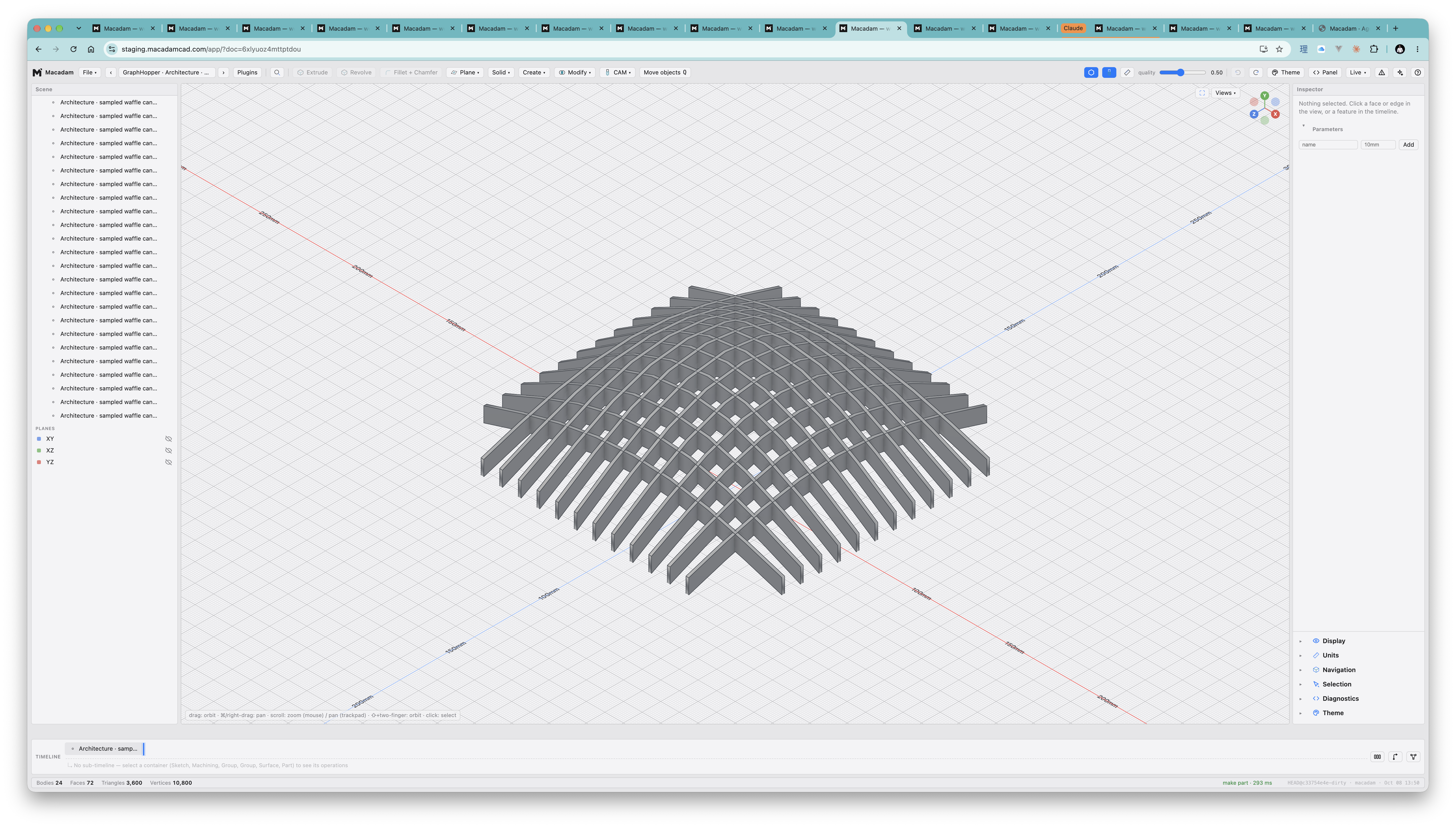
The editor supports multiple-node selection, folding and moving nodes together, and reconnecting links by dragging their plugs. Disconnected branches are ignored during computation. Graph errors appear in the shared Problems panel and status bar.
Template parts let you keep reusable graph definitions separate from their instances. Public graphs become commands in the enclosing document, while instances expose their inputs without opening the graph editor by default.
Make the workspace your own
Dock panels beside one another, group them into tabs, float them, or move them into separate windows. Animated previews show where a dragged panel will land. Save named layouts and switch between them as your task changes.
Create additional panel instances—including viewports with independent camera angles—and build named container tabs. Containers can arrange their children as tabs or compact, collapsible stacks. Display, Units, Navigation, Selection, Diagnostics and Theme settings are panels too.
The Timeline adapts to a tall panel with a column-based layout: selecting a group reveals its contents in the next column. Problems, Console, Model and the dependency graph participate in the panel system.
Connect your AI to the right document
Macadam's browser app can connect compatible MCP clients to one explicitly chosen tab and document. The AI menu shows connection status, lets you switch or disconnect clients, and provides setup instructions and authorization management.
AI tools can discover Macadam's JavaScript API and execute multiline scripts with local variables, loops and helper functions. That makes tasks such as generating a small city possible in a single script rather than a long series of individual commands.
Keep your cloud library organized—and encrypted
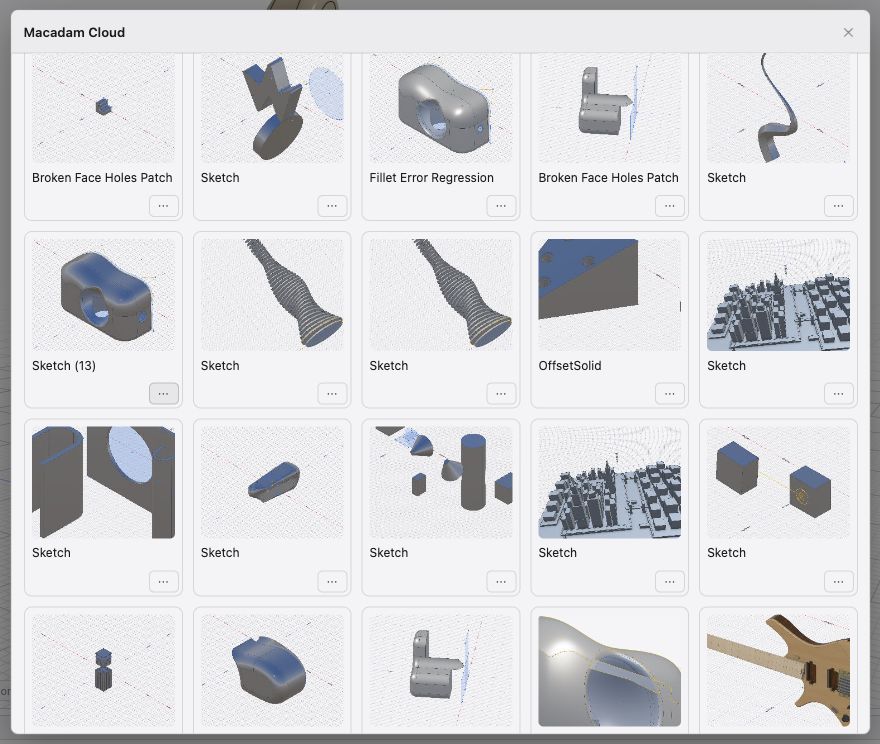
Save and reopen encrypted designs with previews. Rename, duplicate or delete designs; create nested folders; and move designs or folders using breadcrumbs and action menus.
Document contents, previews, names and folder organization are encrypted on your device. Concurrent organization changes are checked before saving. Recovery codes let you unlock the same library on another browser or device, and recovery-code changes now have clearer confirmation and error handling.
More modeling options
The modeling toolbox has grown considerably:
- Parts and assemblies: reuse a part in multiple placements, edit shared contents, and export an assembly structure to STEP.
- Patterns and mirrors: repeat or mirror whole bodies, with parametric counts and spacing.
- Helices and pipes: create coils, sweep profiles along them, or build solid and hollow pipes along curves.
- Direct editing: offset or move faces, thicken sheets, and delete or fill faces by extending their neighbors where possible.
- Extrude, loft and sweep: thin-wall extrusion, start offsets, guided lofts, and profile-orientation controls.
- Other operations: scale bodies uniformly or per axis, choose shell thickness inside/outside/both ways, use distance-and-angle chamfers, and keep boolean tool bodies.
- Holes and threads: point-based, counterbored and countersunk holes, plus ISO metric thread declarations.
- Sheet metal: create tabs, flanges, hems and contour flanges, add cutouts, explore folded and unfolded states, and export supported flat patterns as DXF or SVG.
Parameter expressions can refer to earlier feature values, so dimensions follow changes upstream.
Other import and export improvements
The File menu uses Open, Insert, Save and Export with format-aware behavior. Export choices follow your selection. Mesh exports provide an interactive preview of the actual tessellation, and mesh imports can recognize suitable planar, cylindrical and conical regions as editable geometry.
Better materials, navigation and everyday editing
Choose textured materials or bring your own base-color, normal and roughness images. Assign materials to bodies or individual faces, adjust their placement, and keep image assets inside the document.
Large documents show visible progress while opening and more work happens away from the interface. Document search, clearer Problems reporting and a unified menu system make complex designs easier to navigate. Menus support nested submenus and reveal a search field when you start typing.
Choose Y or Z as the document's up axis, use isometric view shortcuts, work in metric or imperial units, and customize the web app's accent color.
Join the Macadam Discord to share what you build, ask questions and help shape the next update.